4.2 Edit a Tenant Admin
Objective
This section guides the system administrator in modifying the information of an existing tenant admin on the platform, including basic account information, tenant profile assignment, and account activation status.
Applicable Role
System Administrator
Prerequisites
Already logged into the System Administrator console.
The target tenant admin already exists.
Steps
Step 1: Navigate to the Tenant Management Page
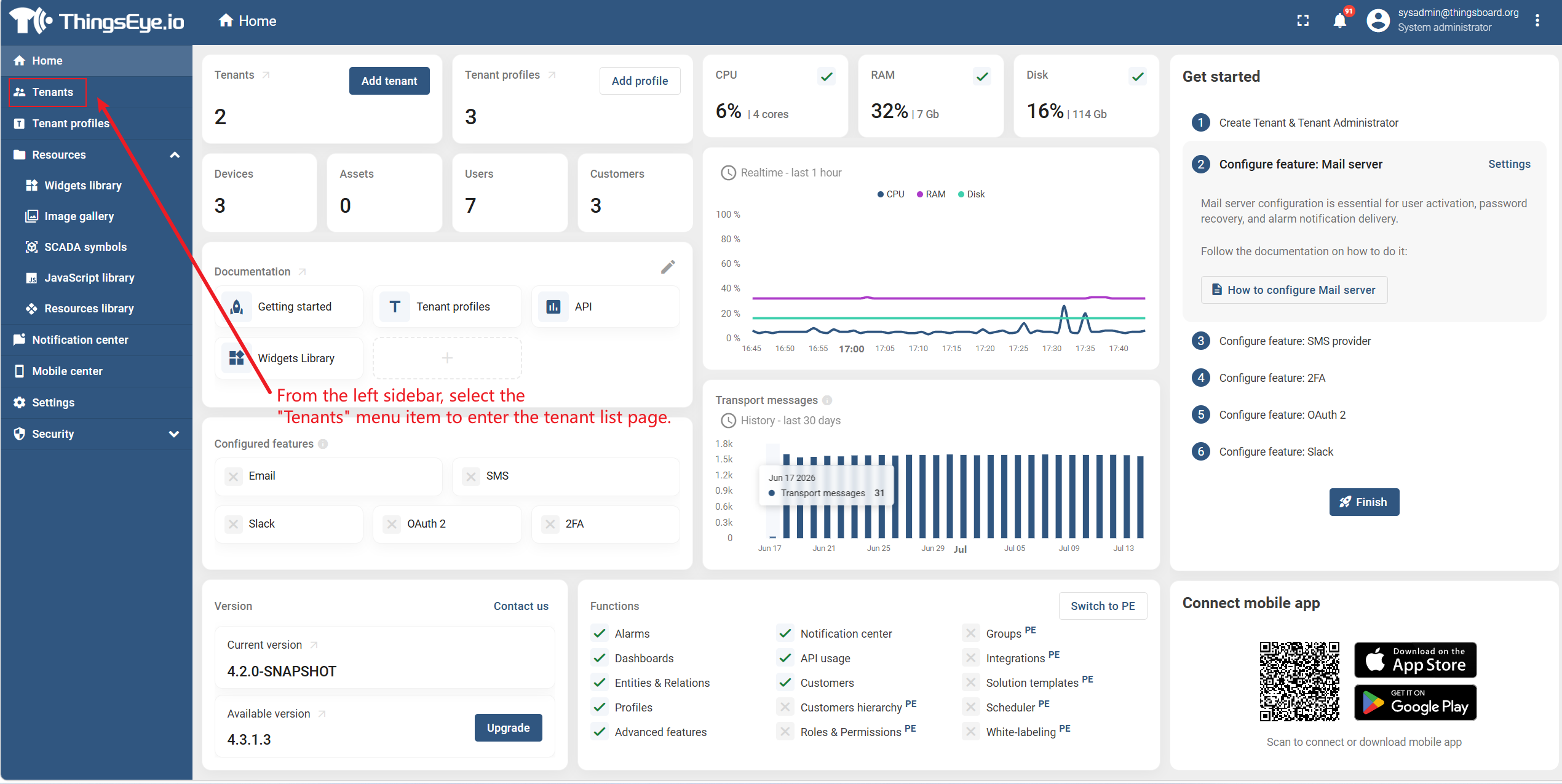
From the left sidebar, select the Tenants menu to enter the tenant list page.
Step 2: Select the Target Tenant
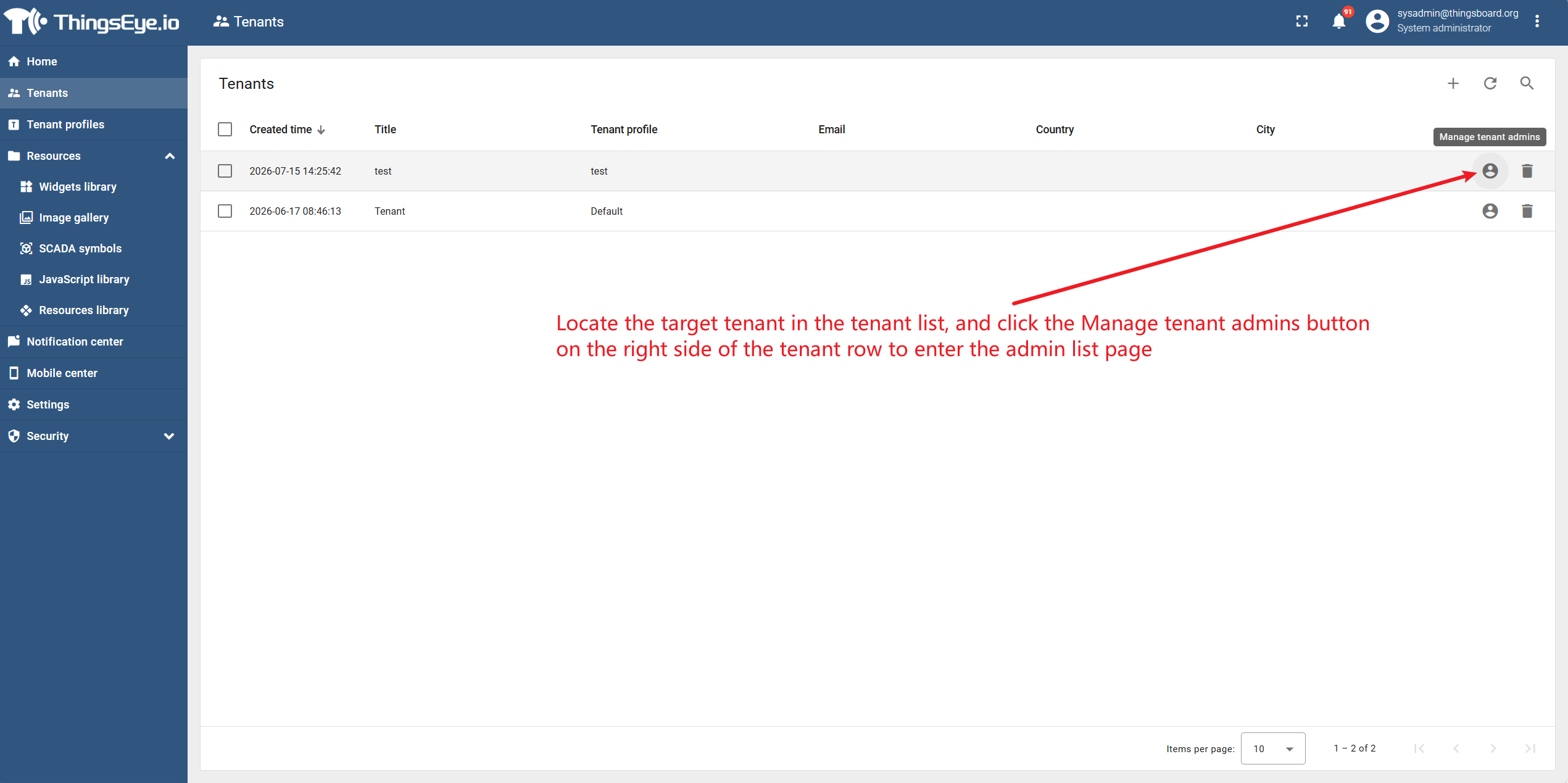
Locate the target tenant in the tenant list, and click the Manage tenant admins button on the right side of the tenant row to enter the admin list page.
Step 3: Select the Target Admin and Enter Edit Mode
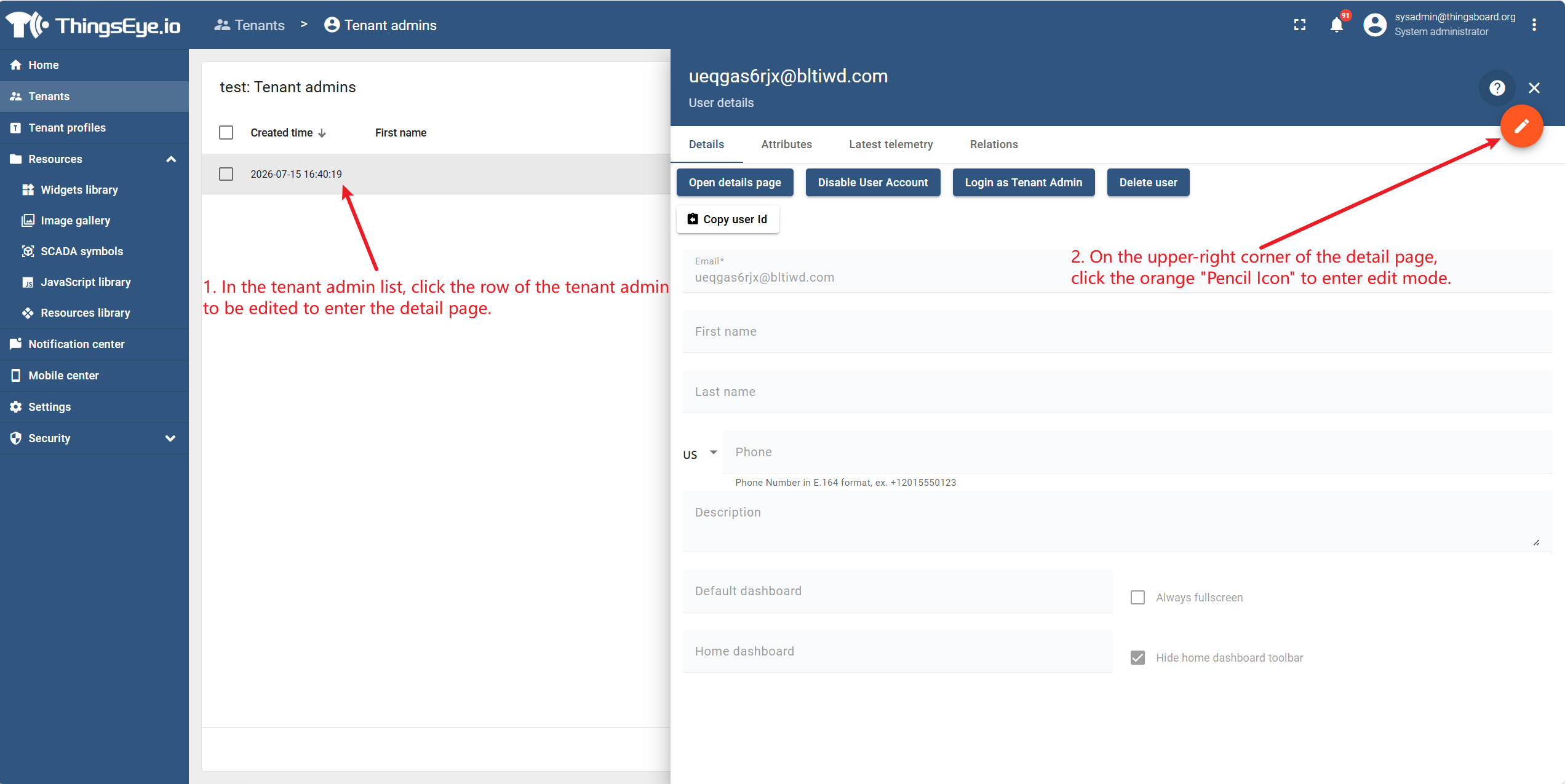
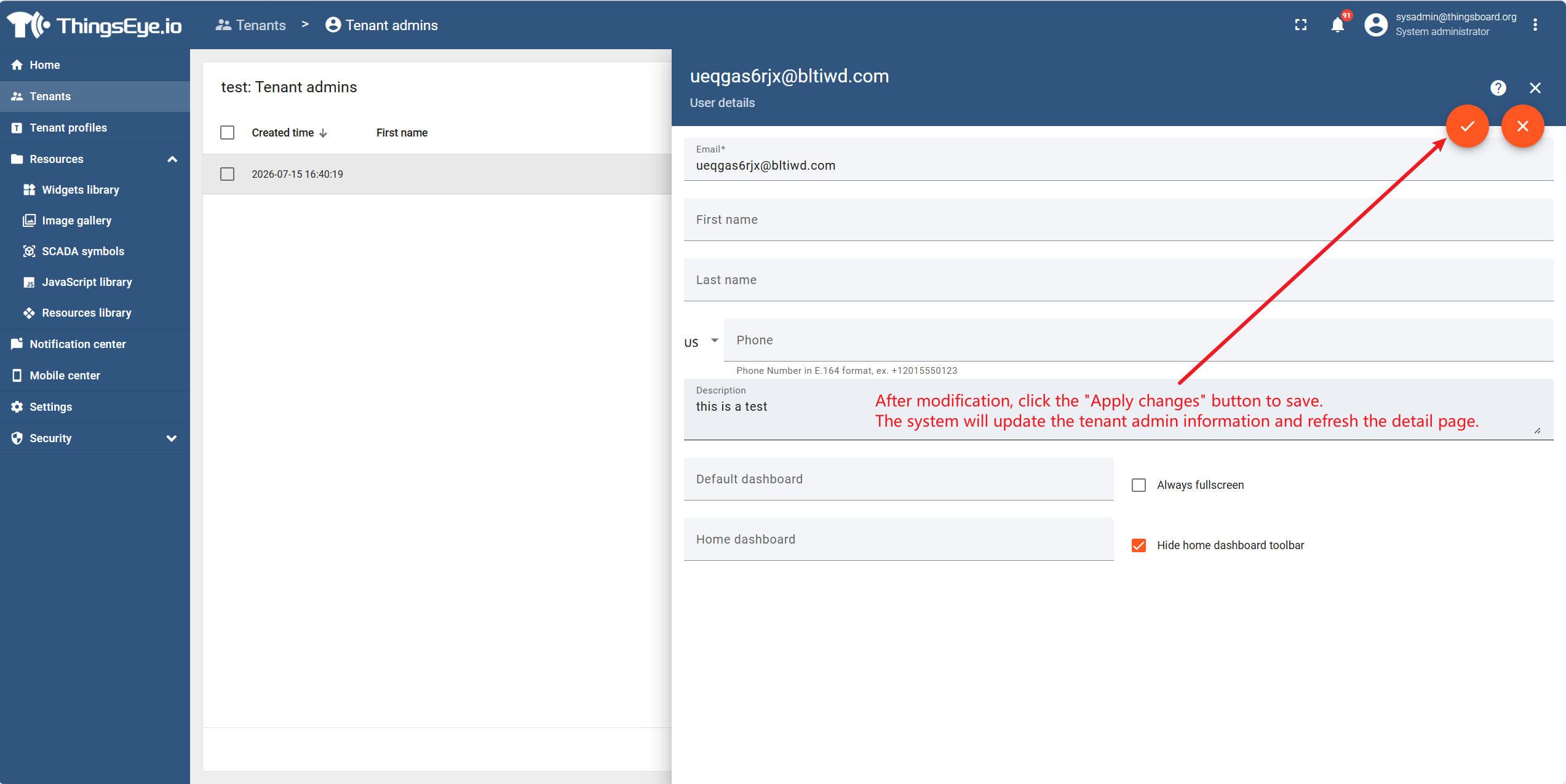
In the tenant admin list, click the row of the tenant admin to be edited to enter the detail page; then click the orange Pencil Icon to enter edit mode.
Step 4: Modify Information
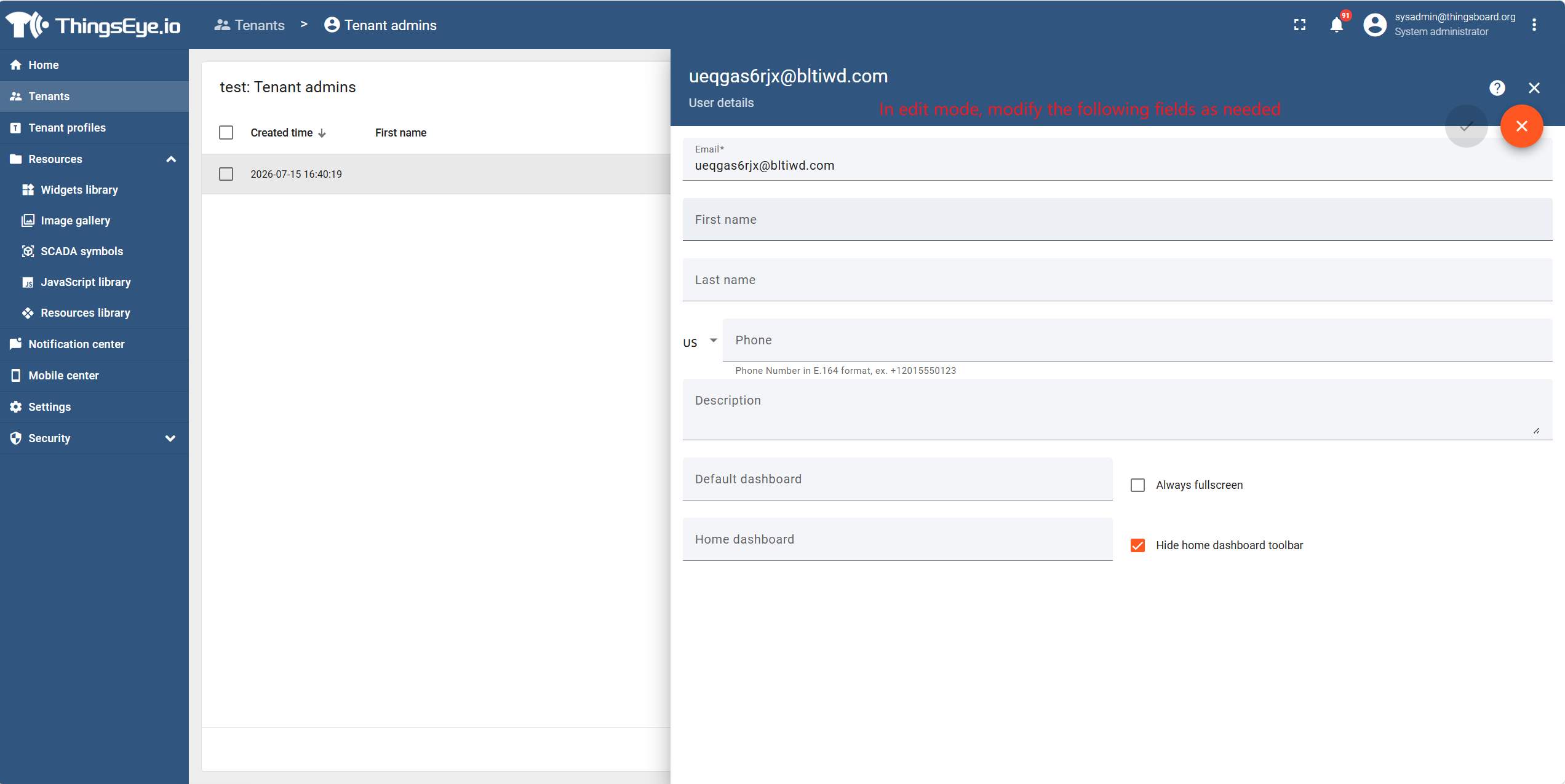
In edit mode, modify the following fields as needed:
Step 5: Save Changes
After modification, click the Apply changes button to save. The system will update the tenant admin information and refresh the detail page.
Important Notes
- After changing the email, the tenant admin must log in with the new email; the old one will become invalid.
- After disabling the account, all active sessions of this admin will be terminated immediately.
- Switching the tenant profile may affect feature sets, quota limits, and available modules under this tenant. Please confirm the impact before proceeding.
Completion Indicator
- The target record in the tenant admin list displays the updated information.
- If the password was changed, the tenant admin can successfully log in with the new password.
- If the account was disabled, the tenant admin will receive an account disabled message when attempting to log in.